Displaying Spectra
Spectra loaded by the user will be automatically displayed in the viewer, although additional spectra loaded after the first may not be fully shown if they exceed the bounds of the plotted area, which are set based on the first displayed spectrum. The bounds can be changed via the Pan/Zoom tool or by deselecting the current spectra and selecting a different spectrum for display. Spectra generated by plugins (e.g a spectrum generated by the Gaussian Smooth plugin) will generally be automatically displayed as well, and one can always see the spectra available and toggle their visibility in the data selection dropdown menu (see Selecting Data Set for more detail).
Selecting Data Set
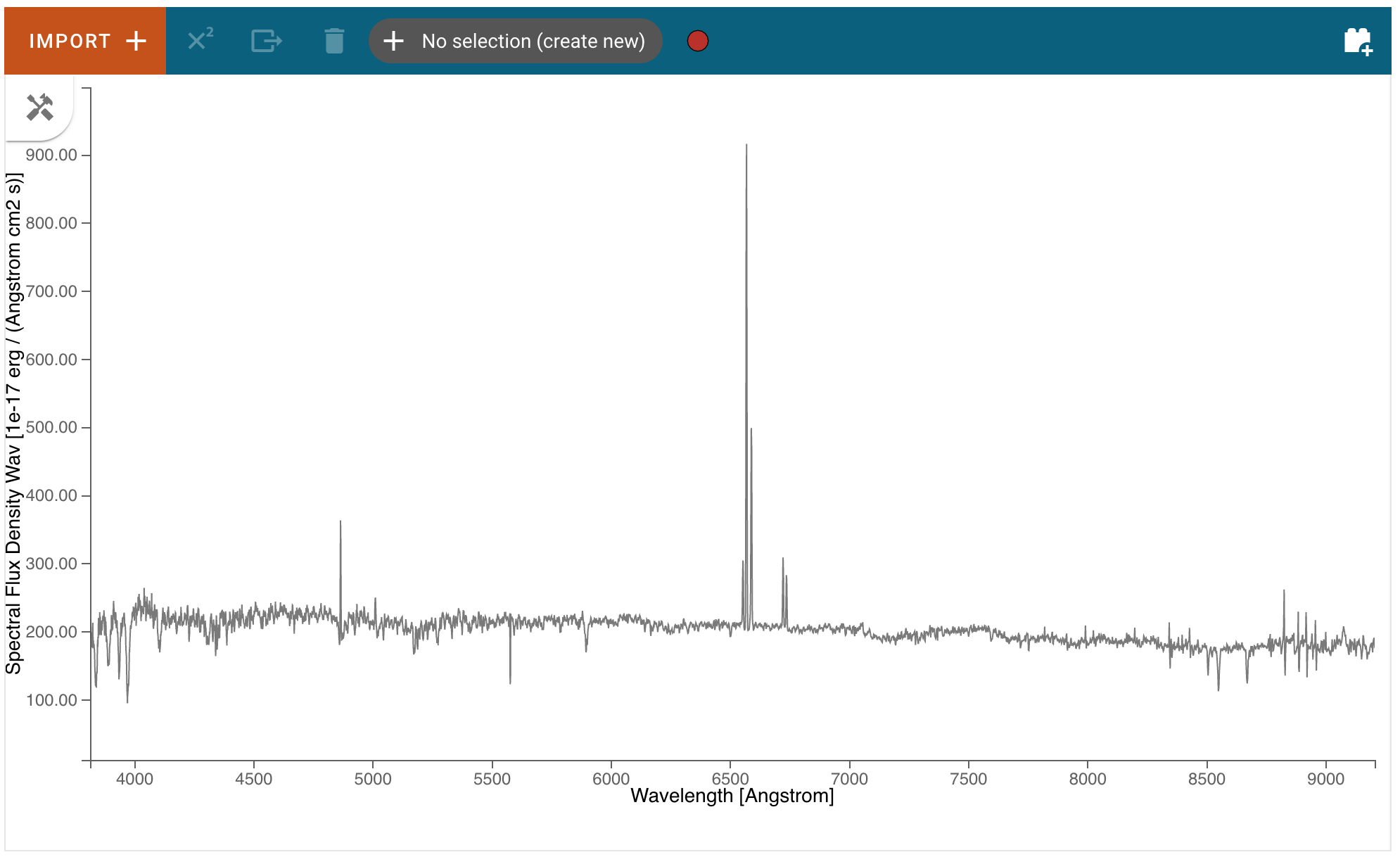
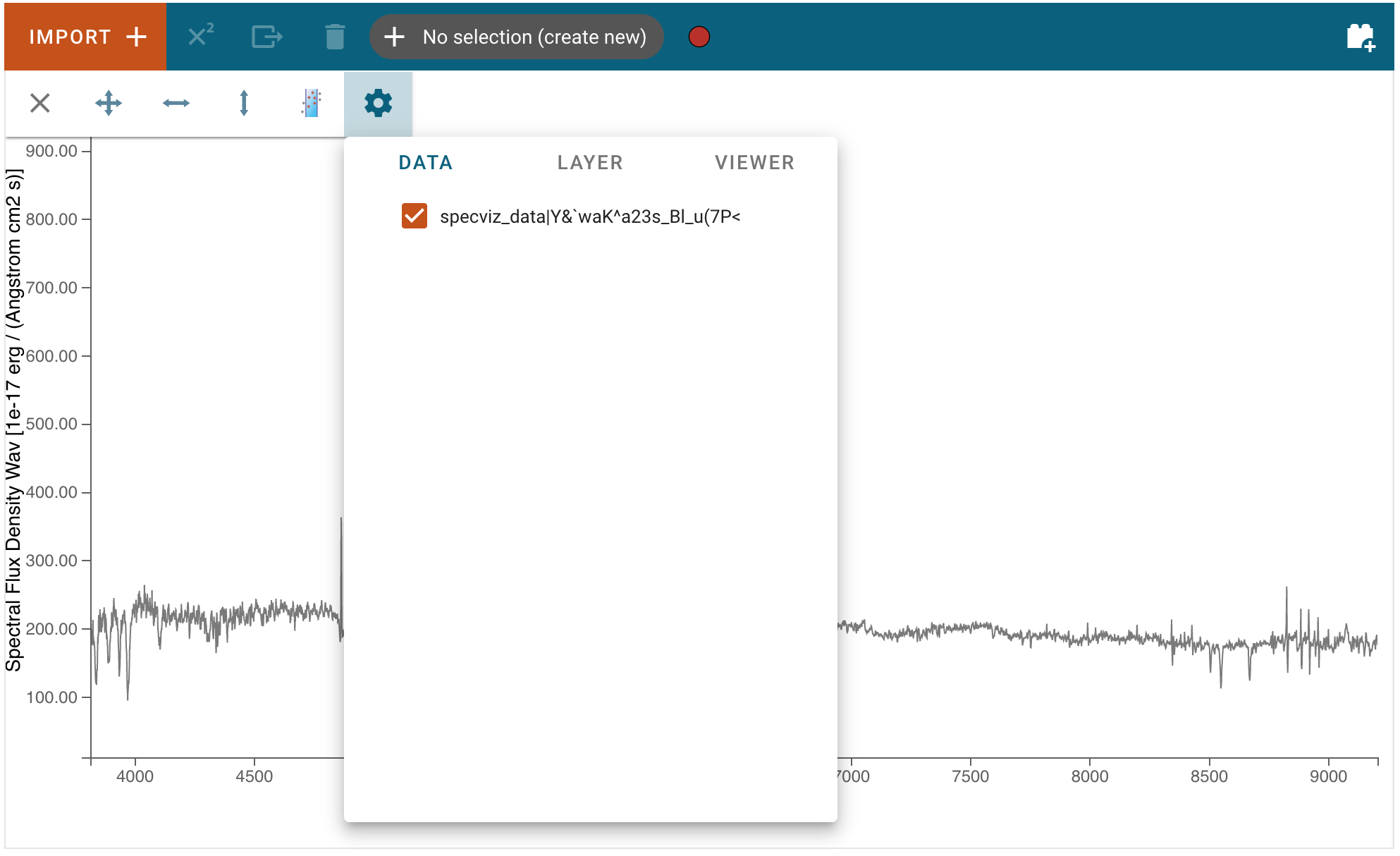
Data can be selected and de-selected by clicking on the “hammer and screwdriver” icon at the top left of an image viewer. Then, click the “gear” icon to access the “Data” tab. Here, you can click a checkbox next to the listed data to make the data visible (checked) or invisible (unchecked).
Pan/Zoom
Included with the Specviz tool are multiple manners to change your view/perspective on the data displayed, depending on your environment:
Interactive Pan/Zoom (Desktop App interface)
You can find the following Pan/Zoom tools available in the tool drawer of the viewer:
2D Bidirectional Pan/Zoom
The 2D Pan/Zoom Icon allows you to zoom using the scroll wheel. The window will zoom into the area around your cursor:
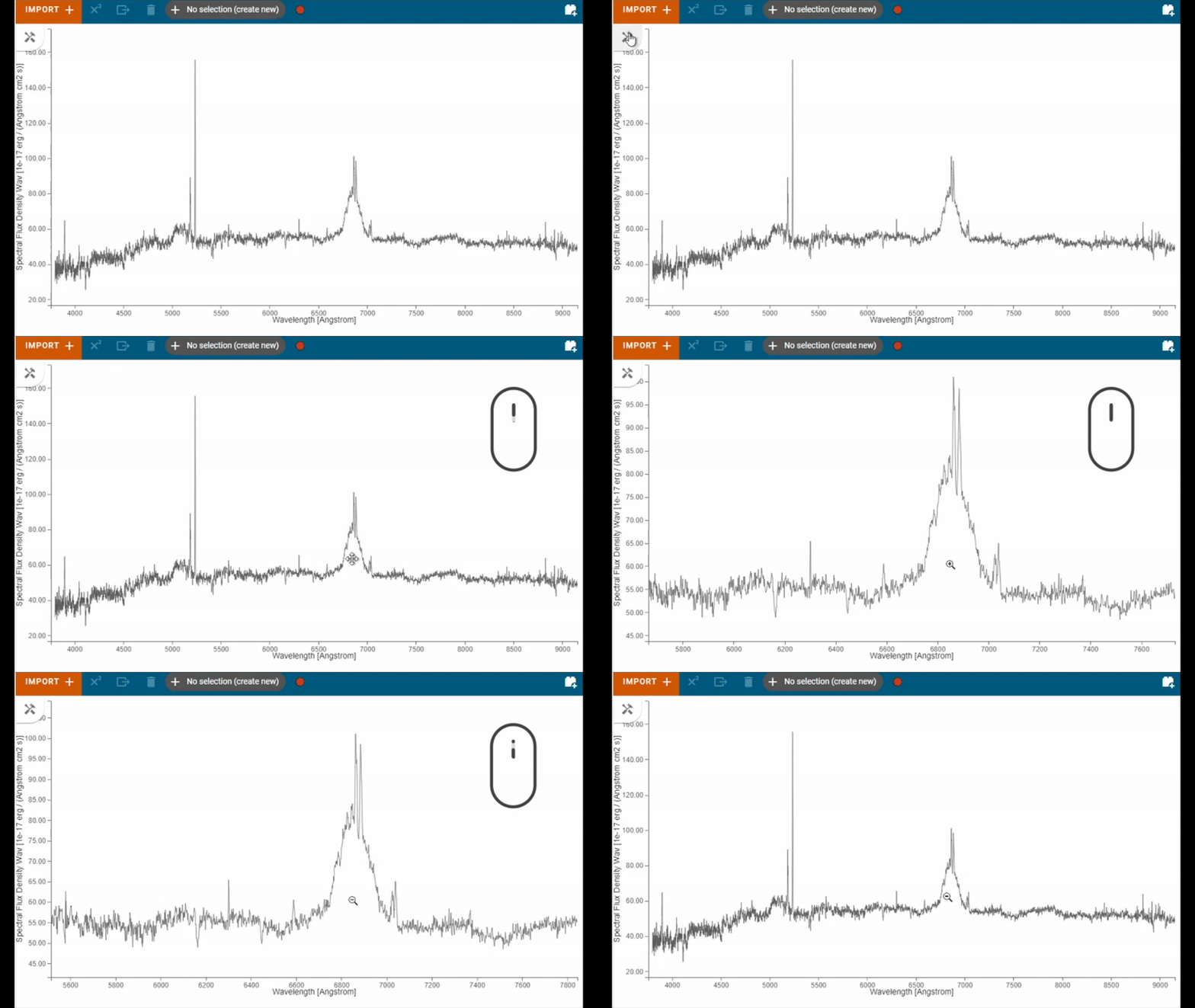
To pan, simply click and drag the window
Horizontal/Vertical Zoom
The Horizontal and Vertical Zoom tools allow you to zoom along each axis, while locking the other. Zoom by scrolling
Note
A gif here showing how these tools manipulate the view, similar to above may be useful here
API Pan/Zoom (Notebook interface)
The Specviz helper contains a set of convinence methods to programmatically define the view of the spectrum viewer.
For information about the Specviz, and other, helpers, and how to instantiate one, please see helpers
Warning
The helper page has not yet been written/defined. Until that documentation is written, you may instantiate a Specviz Helper via:
>>> from jdaviz import SpecViz
>>> # Instantiate an instance of SpecViz
>>> SpecViz = SpecViz()
>>> # Display SpecViz
>>> SpecViz.app
Limit methods
You can use the methods x_limits() and y_limits() to modify the field of view of Specviz. You can provide it a scalar (which assumes the units of the loaded spectra), an Astropy Quantity, or ‘auto’ to automatically scale
>>> SpecViz.x_limits()
>>> SpecViz.x_limits(650*u.nm,750*u.nm)
>>> SpecViz.y_limits('auto', 110.0)
Additionally, you can provide the limit methods with a SpectralRegion. Specviz shall set the bounds the upper and lower bounds of the SpectralRegion
>>> from astropy import units as u
>>> from specutils.spectral import SpectralRegion
>>> bounds = SpectralRegion(0.45*u.nm, 0.6*u.nm)
>>> SpecViz.x_limits(bounds)
Autoscale methods
You can also quickly return to the default zoom using SpecViz.autoscale_x() and SpecViz.autoscale_y()
Axis Orientation methods
To quickly flip an axis to change to and from ascending/descending, use SpecViz.flip_x() and SpecViz.flip_y()
Defining Spectral Regions
Spectral regions can be defined by clicking on the “hammer and screwdriver” icon at the top left of an image viewer. Then, click the “region” icon to set the cursor dragging function in “spectral region selection” mode.
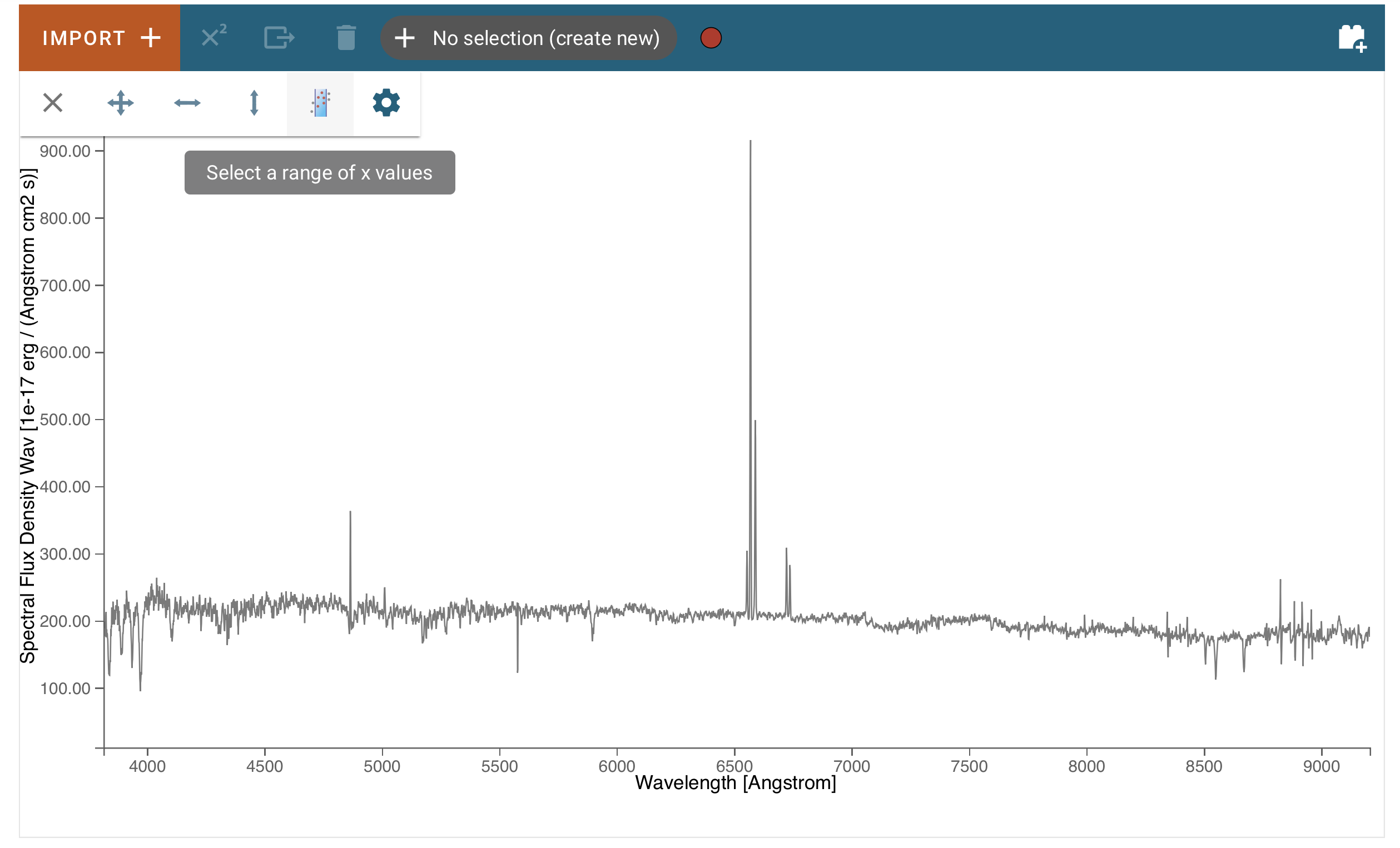
Now, you can move the mouse to one of the end points (in wavelength) of the region you want to select, and drag it to the other end point. The selected region background will display in light gray color, and the spectral trace in color, coded to subset number.
You also see in the top tool bar that the region was added to the data hold, and is named “Subset 1”.
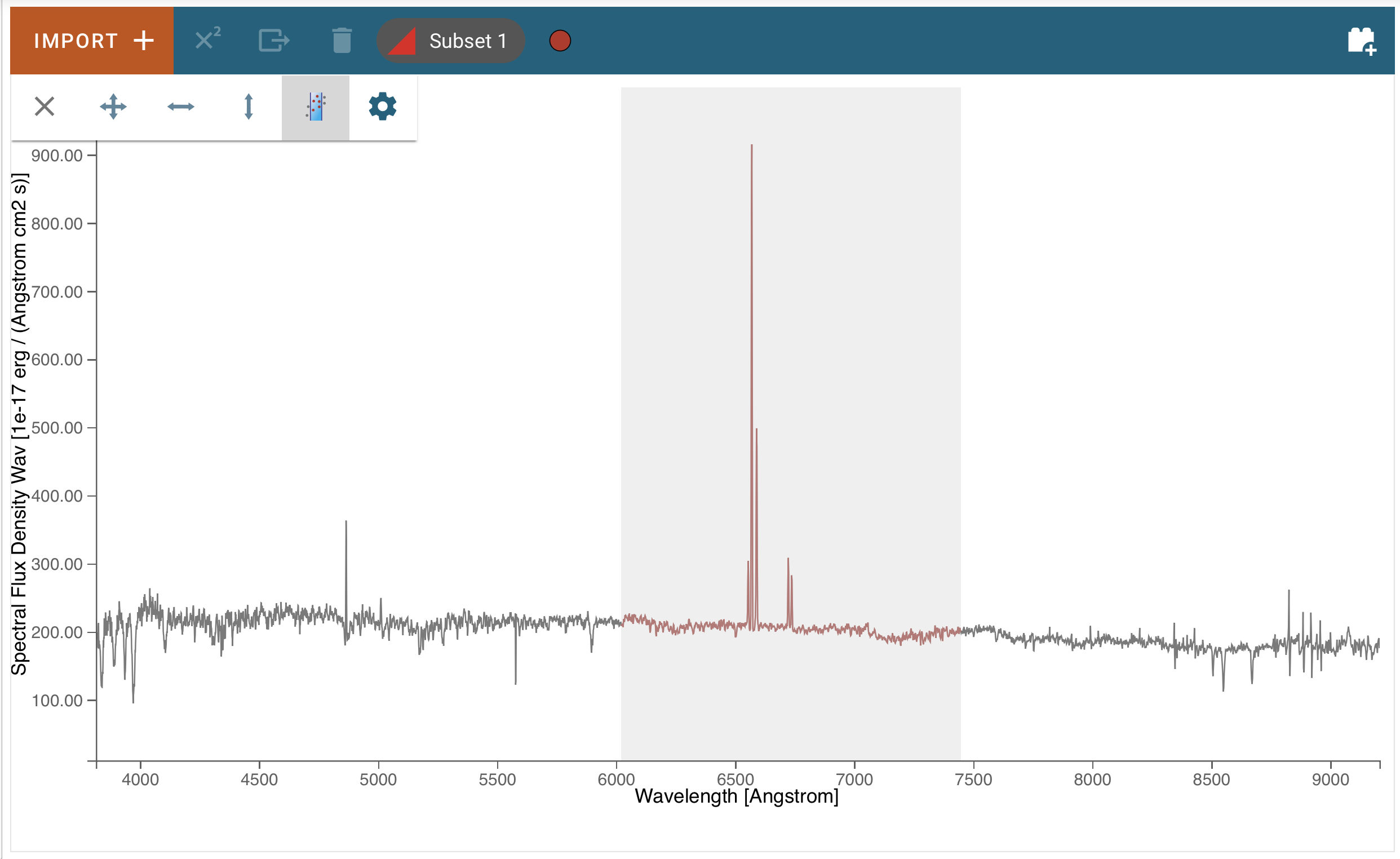
Clicking on that selector, you can add more regions by selecting the “create new” entry:
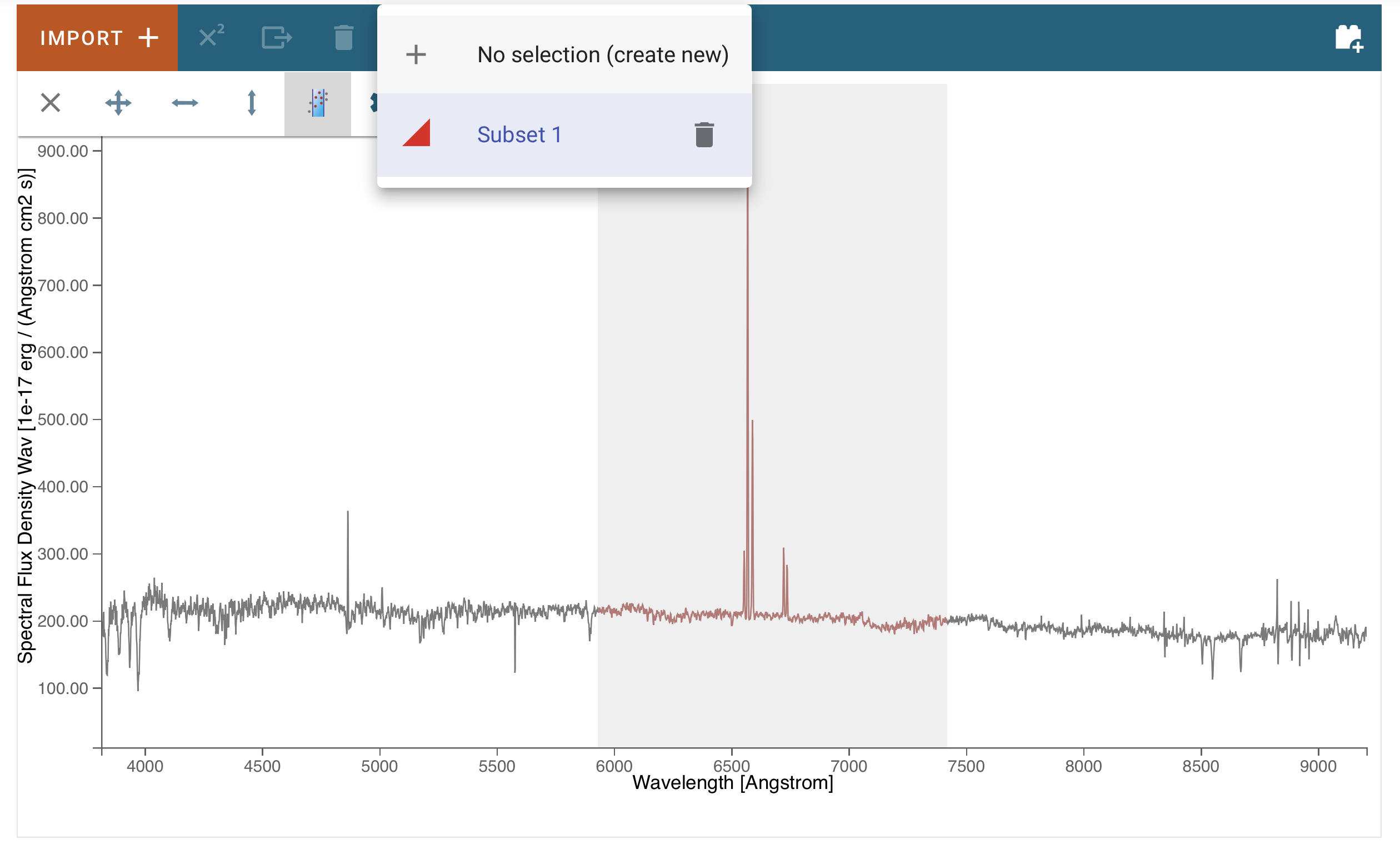
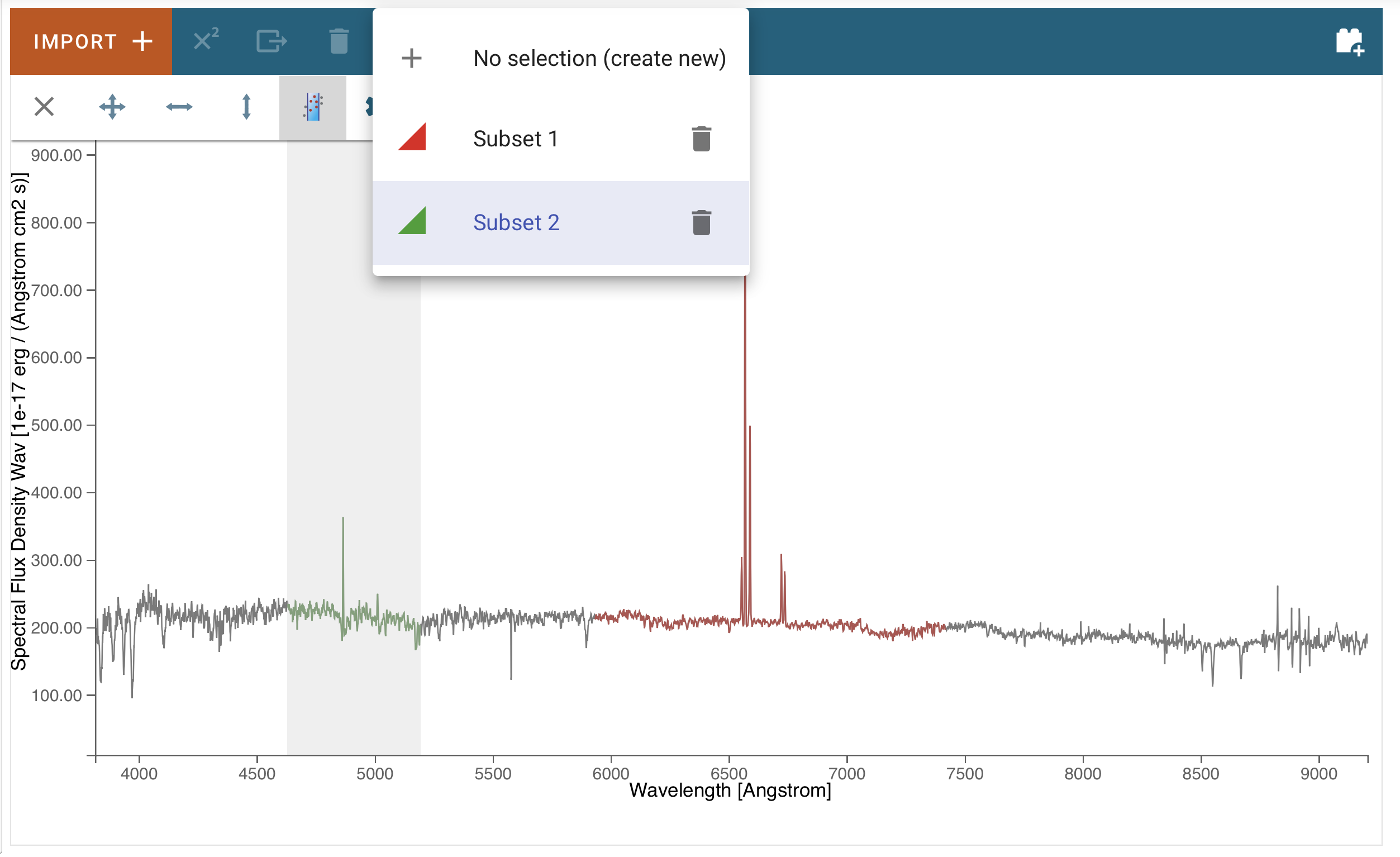
Now just select the end points of the new region as before. It will be added to the data hold with name “Subset 2”:
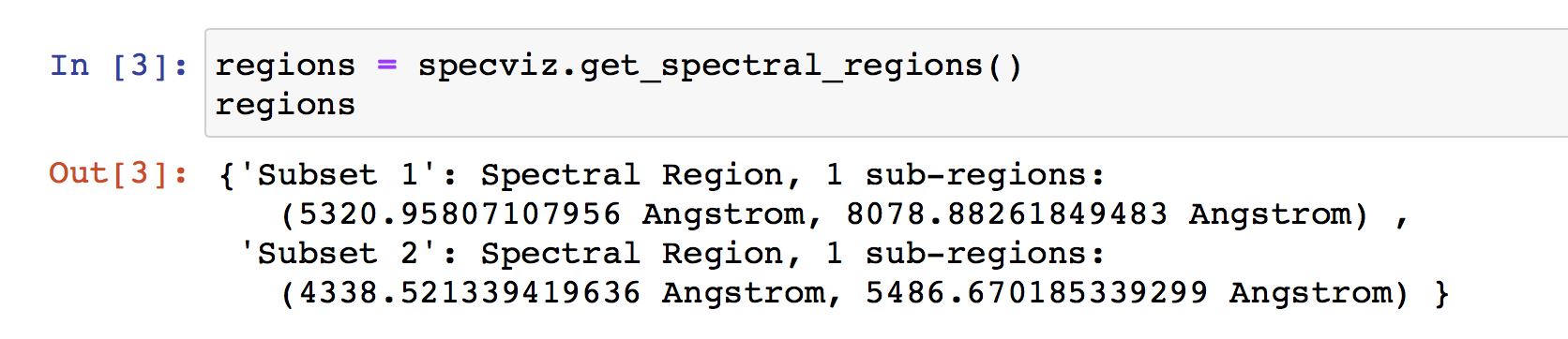
In a notebook cell, you can access the regions using the get_spectral_regions() function:
Plot Settings
To access plot settings for a particular viewer (including the spectrum viewer), click the hammer and screwdriver icon, followed by the gear icon, followed by the Layer tab.
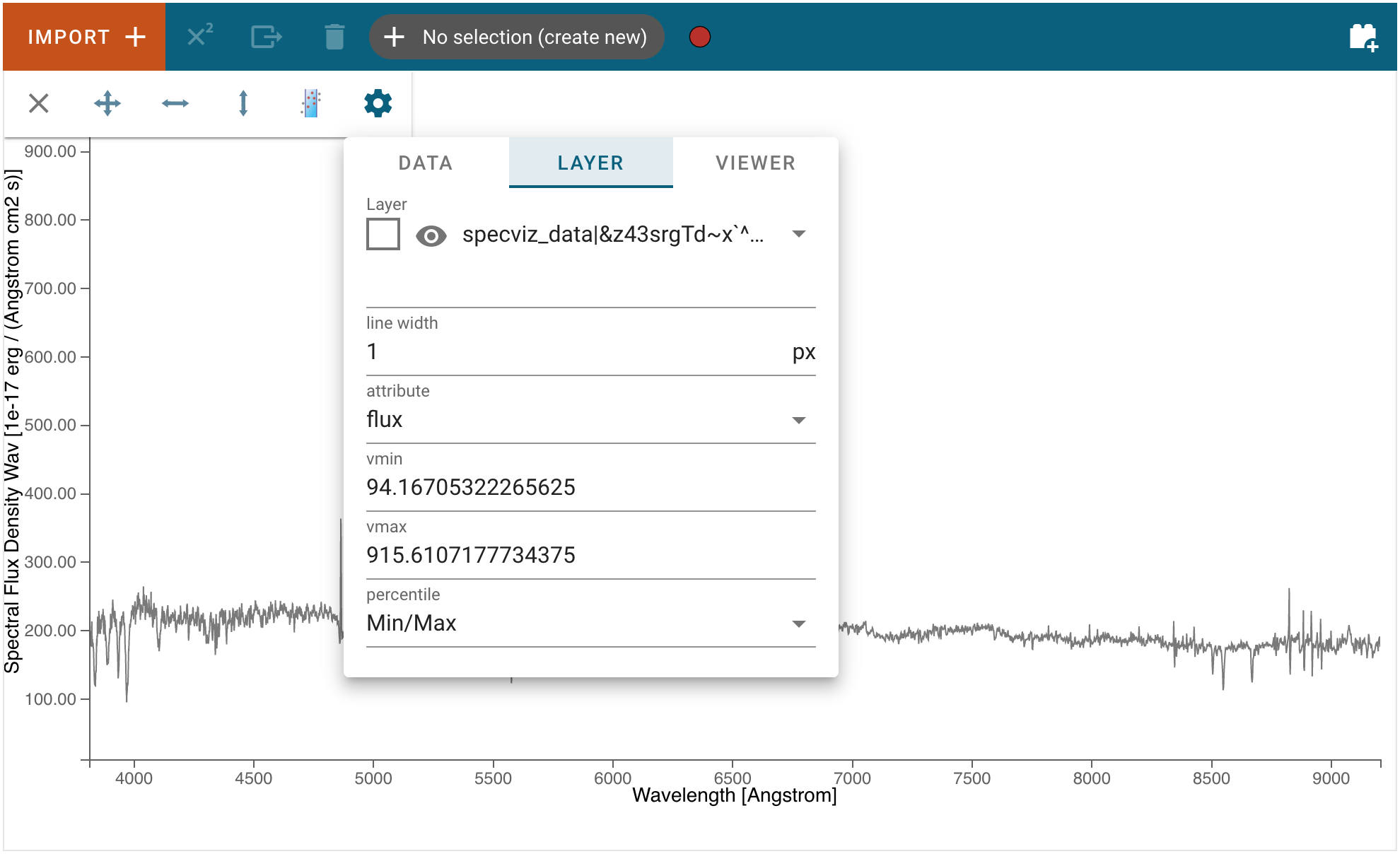
Layer
The top section of the Layer tab contains options to change the color of the spectrum (click the square icon to see a color change menu), change visibility of the spectrum (eye icon), and a drop-down box to select which layer will have its settings changed.
Line Width
Width of the spectrum in pixels. Larger values correspond to thicker lines on the plot.
Vmin and Vmax
Minimum and maximum values of the y axis.
Percentile
Sets the bounds of the plot (Vmin and Vmax) such that the selected percentage of the data is shown in the viewer. Editing either bound manually changes the “Percentile” selection to “Custom.”